How to use HealthPilot
A complete, screen-by-screen walkthrough of everything HealthPilot can do — from your first sign-in and daily check-ins to AI diet plans, report insights and your emergency health card.
Basics
Track & log
AI & plans
Records
More
1. Getting started
Create your account and set up your health profile in a couple of minutes. The details you add here power almost everything else — your dashboard, AI diet plans, health summaries and your emergency health card.
Create your account
Enter your name, email and a password — or tap Continue with Google to skip straight in.
If you signed up with email, we send a 6-digit code to verify it. Enter the code to activate your account.
Allow notifications so medicine, appointment and refill reminders can reach you on time.
Forgot your password later? Tap Forgot Password on the sign-in screen — we email you a code, then you set a new password.
Complete your health profile
A short 4-step setup captures the basics HealthPilot uses everywhere else:
- Personal info: name, gender, date of birth, blood group and an emergency contact.
- Body: height and weight — your BMI is previewed live as you type.
- Medical: tick any existing conditions (diabetes, hypertension, thyroid and more) and list your allergies.
- Lifestyle: smoking status, alcohol consumption and activity level.
Finding your way around
A bar at the bottom of the app has four tabs that hold everything:
Dashboard
Today at a glance
Health
Log your vitals
Medicines
Doses & reminders
More
Everything else
2. Your dashboard
The dashboard is your home screen — a live snapshot of your day that you can act on without digging into menus. Pull down to refresh it any time. Here's what each part does:
- Greeting & profile: tap your photo or name to open your profile. The bell shows unread notifications.
- Today's Medicines: each medicine due today with its timing and food instruction. Tap Mark Taken to log the next dose — it counts up (e.g. 1/2) until all doses show All Taken.
- Water Intake: a progress bar toward your daily goal. Use + / – to add or remove a glass right from here.
- Quick Actions: one-tap shortcuts to add a sugar, BP or weight reading, or upload a report.
- Latest Readings: your five vitals (sugar, blood pressure, weight, temperature, blood oxygen), colour-coded by status and sorted so the most recent is first. Tap one to open its history.
- How are you feeling?: tap a mood emoji to open today's journal entry pre-filled with that mood.
- Next Appointment: your soonest upcoming visit, with a countdown (Today / Tomorrow / in X days).
- Today's Meals: breakfast, lunch and dinner from your active diet plan with calories — or a prompt to generate a plan if you don't have one yet.
- AI Health Summary & Document Vault: quick links to your latest AI insights and your stored files.
3. Health tracker
The Health tab is where you log and review your vitals. The top of the screen shows three quick stats — check-ins today, your weekly average sugar and your BMI — followed by a card for each of the six things you can track. Tap any card to open its full history and add a new reading.
Blood sugar
Pick a reading type — before/after breakfast, lunch or dinner, or random — and enter your level in mg/dL. HealthPilot flags each reading normal, borderline or high, and shows your pre-meal and post-meal averages. Filter the list by type at any time.
Blood pressure
Record systolic and diastolic values (and optionally your pulse). Each reading is classed from normal through to high so you can spot a worrying trend early.
Weight & BMI
Log your weight and HealthPilot calculates your BMI automatically using the height from your profile, and shows how much you've changed since your last entry.
Body temperature
Record your temperature and see whether it's in the normal range or a fever, colour-coded for a quick read.
Blood oxygen
Log your SpO₂ percentage to keep an eye on your breathing health, with a normal/low status on every reading.
Water intake
Tap a glass on the circular tracker to set today's count, or remove the last one. See a timestamped log of today's glasses and a bar chart of the past 7 days. Your goal is drawn from your active diet plan (8 glasses by default).
To add a reading, open the vital and tap Add (or the button), enter the value with its date and time, and save. To remove one, tap the trash icon or long-press the entry.
4. Medicines & reminders
The Medicines tab keeps your whole medication routine in one place. The header shows how many medicines are active, your overall compliance and your total count, and you can filter the list by Active, Completed or All.
Adding a medicine
Tap Add and fill in:
- Name — e.g. "Metformin 500mg".
- Frequency — daily (once, twice, three or four times a day) or periodic (every 5 days, weekly, every 2 weeks, monthly). Weekly options let you pick the day of the week; monthly lets you pick the day of the month.
- Reminder times — one time per dose, set with a simple hour / minute / AM–PM picker.
- Food instruction — before food, after food or any time.
- Duration — a start date, and an optional end date.
- Notes — anything you want to remember about it.
- Track inventory (optional) — record how many units you have, how many you take per dose, and the level at which you want a low-stock warning.
Managing a medicine
Tap any medicine to open its detail screen, where you can:
- Mark each of today's doses as Taken or Skip.
- See your compliance rate and a recent history of taken, skipped and missed doses.
- Track stock — see roughly how many days you have left and tap Refill to top it up.
- Edit, delete, or mark the course completed when you're done with it.
How reminders work
For each dose time HealthPilot sets an on-device alarm that rings even when you're offline, backed up by a push notification from our servers. When it fires, a full-screen alarm shows the medicine(s) due at that time with big Taken and Skip buttons — tap one to log the dose and silence the alarm. If you don't respond, a gentle follow-up reminder fires a little later. Editing or deleting a medicine automatically cancels its old reminders and reschedules new ones.
Reminders are controlled by the Medicine Reminders switch in App Settings. If it's off, a banner on the Medicines list lets you turn it back on. To make sure alarms always ring, follow the “Keep reminders reliable” steps (allow the app to run without battery restrictions).
Make sure your reminders always ring
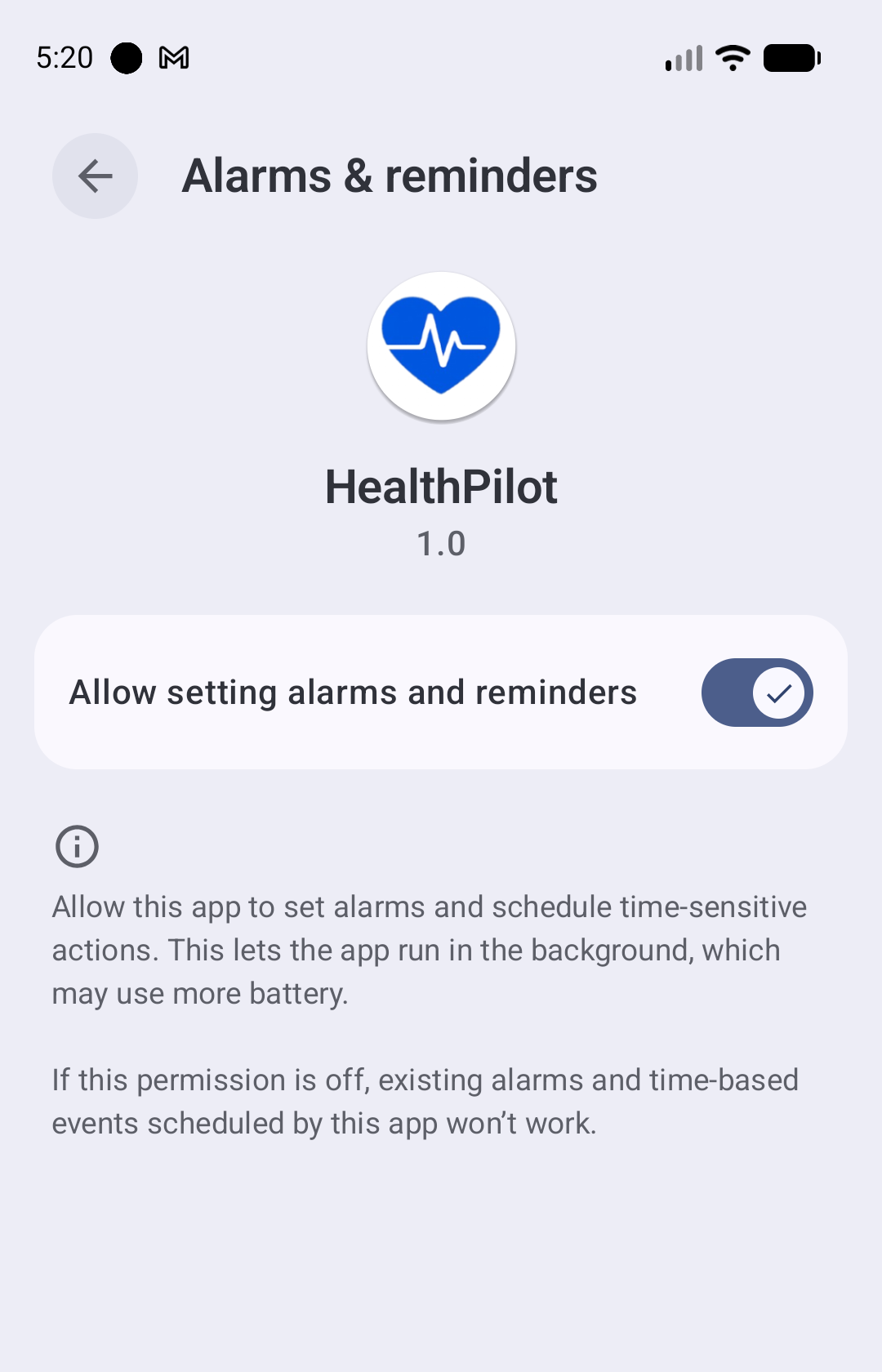
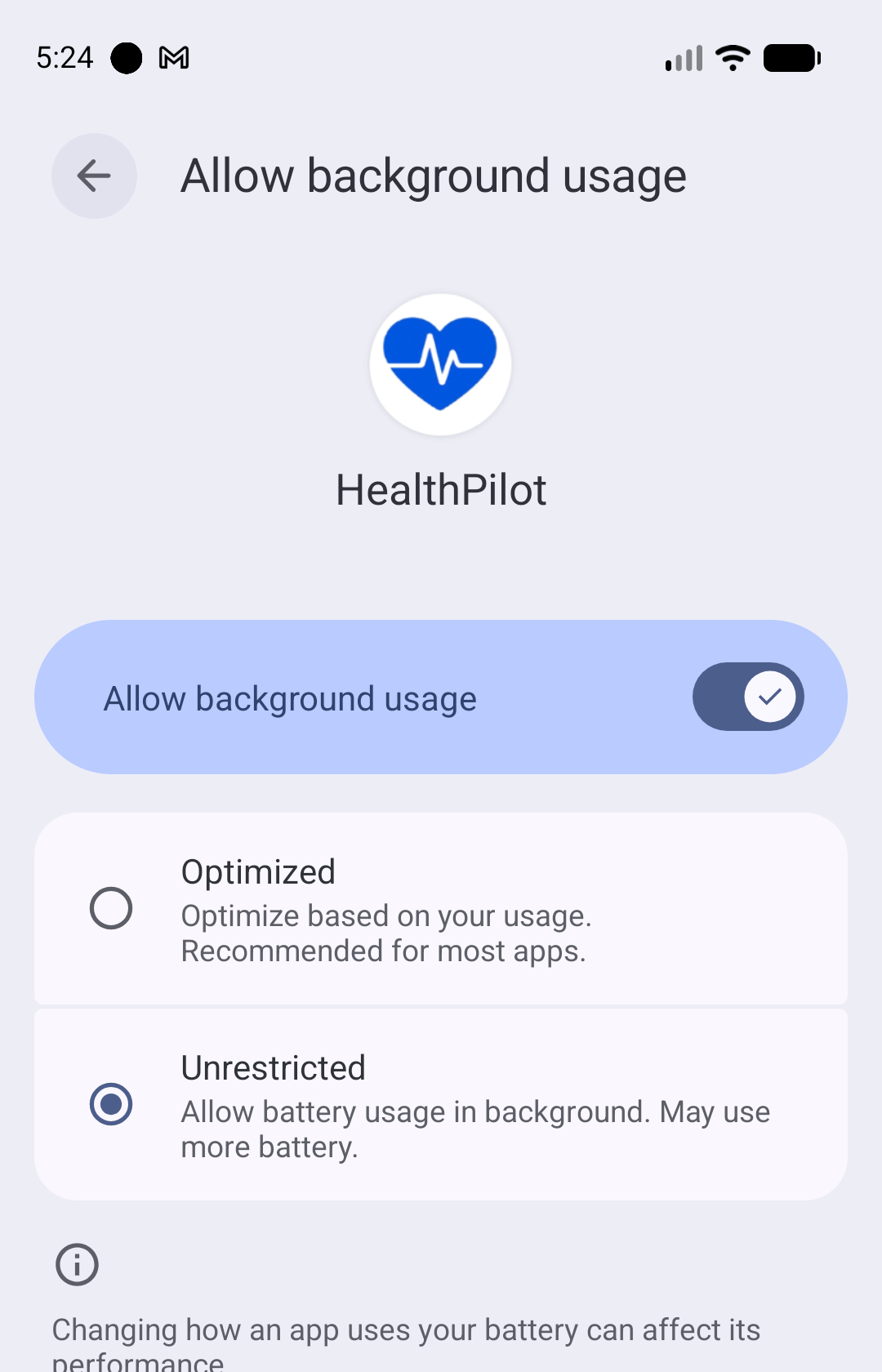
Getting your medicine on time is what HealthPilot is all about. To guarantee the alarm rings — even when your phone is locked, silent or asleep — Android needs two permissions granted to HealthPilot. This is a one-time setup, and it's worth doing the moment you add your first medicine.
Shortcut: in the app go to More → App Settings → Medicine Reminders and tap “Keep the medicine reminder reliable” — it opens these device settings for you.
1 Allow alarms & reminders
Go to Settings → Apps → HealthPilot → Alarms & reminders and turn on “Allow setting alarms and reminders.” Without this, scheduled dose alarms won't fire.
2 Set battery to Unrestricted
Go to Settings → Apps → HealthPilot → App battery usage, turn on Allow background usage, and choose Unrestricted. This stops your phone force-stopping HealthPilot to save battery — which would silence your alarms.
5. Symptom & mood journal
Found under More → Symptom & Mood Journal (and one tap away from the dashboard mood widget), the journal is a quick daily check-in on how you're doing. Each entry lets you:
- Pick a mood from five faces.
- Tag symptoms from a common list, or add your own under “Other Symptoms”.
- Write a short note about your day.
There's one entry per day — reopen any day to update it. Over time this builds a clear picture you can share with your doctor, and it feeds directly into your AI Health Summary, which looks for links between how you felt and what your vitals were doing.
6. Appointments
Under More → Appointments, keep track of every doctor visit. Add one with the doctor's name, specialisation, hospital, date, time, address and any notes, and HealthPilot sends a reminder ahead of time so you're always prepared.
- Switch between Upcoming and Past tabs — upcoming visits show a countdown.
- Mark Done when a visit is over, or edit / delete it.
- Use Next Appt on a completed visit to quickly book a follow-up with the same doctor's details pre-filled.
7. AI diet planner
Open it from More → Diet Planner (or the dashboard). The planner builds a personalised 7-day meal plan around your health profile, goals and preferences — with a full recipe behind every single meal.
Generating a plan
Tap Generate Diet Plan. You'll first see how many plans you have left this week.
Fill in the criteria form, then tap generate. Your plan is built in the background — you can leave the screen and come back.
In a couple of minutes your 7-day plan is ready, and today's meals also appear on your dashboard.
The criteria form lets you tune the plan precisely:
- Age & weight — pre-filled from your profile.
- Goal — weight loss, weight gain, maintenance, muscle gain or general wellness.
- Cuisine — Indian, Mediterranean or mixed.
- Dietary preference — vegetarian, non-veg, vegan or everything.
- Conditions, allergies & medications — pulled from your profile so the AI plans around them (it avoids your allergens and accounts for your conditions and medicines).
- Your preferences — a free-text box for anything else, e.g. “low carb, avoid dairy, prefer soups”.
Reading your plan
The plan opens on today. At the top you'll see your daily calorie target and water goal, plus small pills summarising what the plan is based on (goal, cuisine, diet) and what it accounts for (your conditions, allergies and medications). Use the day strip to move between days. Each day lists your meals across the whole day:
Every meal shows one or more options with a name, a short tagline and its calories. Tap any option to open its full recipe.
Inside a recipe
Each recipe is a complete cooking guide, including:
- At-a-glance chips — prep time, cook time, servings, difficulty and spice level.
- Equipment you'll need.
- Nutrition — calories plus protein, carbs and fat, with fibre and sugar estimates.
- Health tags and a “Why this is good for you” note tailored to your profile.
- Ingredients with quantities and notes.
- Step-by-step instructions, each with its own timing.
- Chef's tips, ingredient substitutions, and storage & pairing suggestions.
Recipes load the first time you open them and are then cached, so re-opening is instant. You can regenerate your whole plan any time from the header (subject to your weekly limit).
8. AI report analysis
Turn a confusing lab report into plain language. Open any document from your Document Vault and tap Analyze with AI. The analysis runs in the background (usually under a minute) and gives you:
- A plain-language summary of what the report says.
- Important findings — the values that are outside the normal range, highlighted.
- A full results table with each test's value, its reference range and a normal / check / high status.
- Recommendations to discuss with your doctor.
9. AI health summary
Open it from the dashboard banner or More → Health Summary. This pulls the last 30 days of everything — vitals, water, medicine compliance and journal entries — into a single AI-written overview. It includes:
- An at-a-glance grid of your key numbers.
- An overall assessment, plus key observations, watch-outs and recommendations.
- A medication adherence note.
- Mood trends, recurring symptoms and links between your symptoms and your vitals — drawn from your journal.
You need at least 7 days of recorded data before your first summary can be generated. Tap Regenerate to refresh it (this runs in the background and notifies you when ready, and counts toward your weekly AI allowance).
10. Document vault
Under More → Document Vault, keep every prescription, lab report and scan safely in one place — no more lost paperwork. Tap Upload and choose a source:
Take photo
Capture a document page by page — after each shot you're asked whether to add another.
Gallery
Select several images at once from your photos.
Browse files
Pick a PDF or image from your device's file storage.
Give the document a name and a category — Prescriptions, Lab Reports, Imaging Reports, Insurance or Other — then save. Filter your vault by category, including App Generated for the PDF reports HealthPilot creates for you.
Tap a document to preview it (swipe through image pages or open a PDF), Share it, Download it to your device, or send it to AI report analysis.
Limits: up to 10 files per document, 10 MB per file, and 50 MB per document.
11. Analytics & reports
HealthPilot brings your data together so you can see the bigger picture and share it easily. Both live under the More menu.
Health Analytics
Switch between Last 7 Days and Last 30 Days to see:
- Summary cards — averages for each vital, your weight change, and average water intake, each with a healthy / watch / alert badge.
- Trend charts — interactive line graphs for every vital you've logged, with min, average and max figures.
- Water & compliance — a 7-day water bar chart and your overall medicine compliance.
Export Report (PDF)
Generate a professional PDF to keep or hand to your doctor. Choose a period (7, 30 or 90 days, or all time), tick the sections to include — profile, health summary, each vital, water, medicines and appointments — and tap Generate. The report is built in the background and saved straight to your Document Vault, where you can open, download or share it.
12. Emergency health card
Under More → Health Card, HealthPilot builds an SOS medical card from your profile — the things a first responder or family member needs to see fast in an emergency:
- Name, age, gender and blood group.
- Allergies (highlighted) and chronic conditions.
- Current medications with their timing.
- Emergency contact details.
- Physical & lifestyle info — height, weight, activity, smoking and alcohol.
Tap Update to refresh the card from your latest profile, then Share it or Download the PDF to keep on your phone. Keeping your profile current keeps the card accurate.
13. Your profile & notifications
The More tab is the hub for everything that isn't a daily task. At the top it shows your profile card and a quick strip with your blood group, conditions and allergies, then lists your tools grouped into Health Tools, Reports and Account. From here you can also invite friends and sign out.
My Profile
Tap your name (on the dashboard or the More tab) to open your profile. It gathers everything you entered at setup into three cards — Personal Information (gender, date of birth, age, blood group, height, weight, BMI with its category, and emergency contact), Medical Conditions (your conditions and allergies), and Lifestyle (smoking, alcohol, activity level).
Tap Edit to update any of it — including your profile photo (from camera or gallery). Keeping this current is what keeps your diet plans, AI summaries and emergency health card accurate. If you change your email address, HealthPilot asks you to verify the new one with a code before it's saved.
Notifications
The bell on the dashboard (and More → Notifications) opens your notification centre. It collects medicine reminders, appointment alerts, low-stock warnings and “your AI report/plan is ready” messages, grouped into Today, This Week and Earlier.
- Unread items are highlighted, and the bell shows an unread count.
- Tap a notification to jump straight to the relevant screen (it's marked read automatically).
- Use Mark all read to clear the count, and pull down to refresh.
14. App settings
Reach settings from More → App Settings. It's grouped into four sections:
Notifications
Turn Push Notifications on or off, and toggle Medicine Reminders — the master switch for dose alarms. A “Keep reminders reliable” link walks you through the device settings that stop your phone silencing alarms.
Privacy & security
Enable App Lock so HealthPilot requires your fingerprint or Face ID to open. You confirm with your biometric to switch it on or off (you'll need biometrics set up on your device first).
About
Read our policy pages, rate the app, contact support by email, and check your app version.
Account
Change your password (Google users can add one to also sign in by email), or delete your account. Deletion is scheduled with a 30-day grace period — sign back in within 30 days to undo it.
15. Privacy & security
HealthPilot stores personal health information, so it's built to keep that private:
- Secure sign-in — email with a one-time verification code, or Sign in with Google.
- App Lock — optionally require your fingerprint or Face ID every time the app opens (with your device PIN as a fallback).
- Protected documents — your uploaded files are always served through private, signed links.
- Reversible deletion — deleting your account starts a 30-day countdown you can cancel by logging back in.
16. Home screen widgets
We're building a set of widgets you can add straight to your phone's home screen — so you can check today's status or log something in a tap or two, without opening the app. Each one is resizable: make it small for a quick glance, or bigger to see more.
Medicines
Your next dose, with one-tap Taken / Skip, and your adherence streak.
Water
Today's glasses vs. your goal, with a "+1 glass" button right on the widget.
Readings & quick add
Your latest sugar, blood pressure, weight and water — each with a "+" to log a new one.
Appointment
Your next upcoming appointment, date and time at a glance.
Once released, you'll be able to add these from a new Widgets screen under More, or the usual way — long-press your home screen and choose Health Pilot.
Frequently asked questions
Still have questions?
Our team is happy to help you get the most out of HealthPilot.
Contact Support